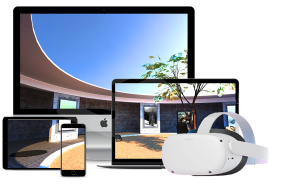
Setup and Delivery Guide

Pair Adobe Connect's meeting, event, registration, and reporting capabilities with a Hyperspace virtual environment. Adobe Connect provides the live session layer, while Hyperspace gives participants an immersive place to explore, meet, learn, and move between experiences.
What this guide covers
This guide explains a practical, repeatable integration model for a single workshop, a multi-room event, or a persistent virtual campus. It does not assume a particular Adobe Connect hosting model, identity provider, room count, or Hyperspace implementation.
Component | Responsibility |
Hyperspace | The navigable virtual environment, room destinations, journeys, and participant experience |
Adobe Connect meeting | Live voice, video, chat, presentations, and collaboration in a specific room |
Adobe Connect event | Registration, invitations, reminders, entry pages, and event reporting |
Identity and security model | Authentication, access rules, consent, retention, and approved data sharing |
Before you begin
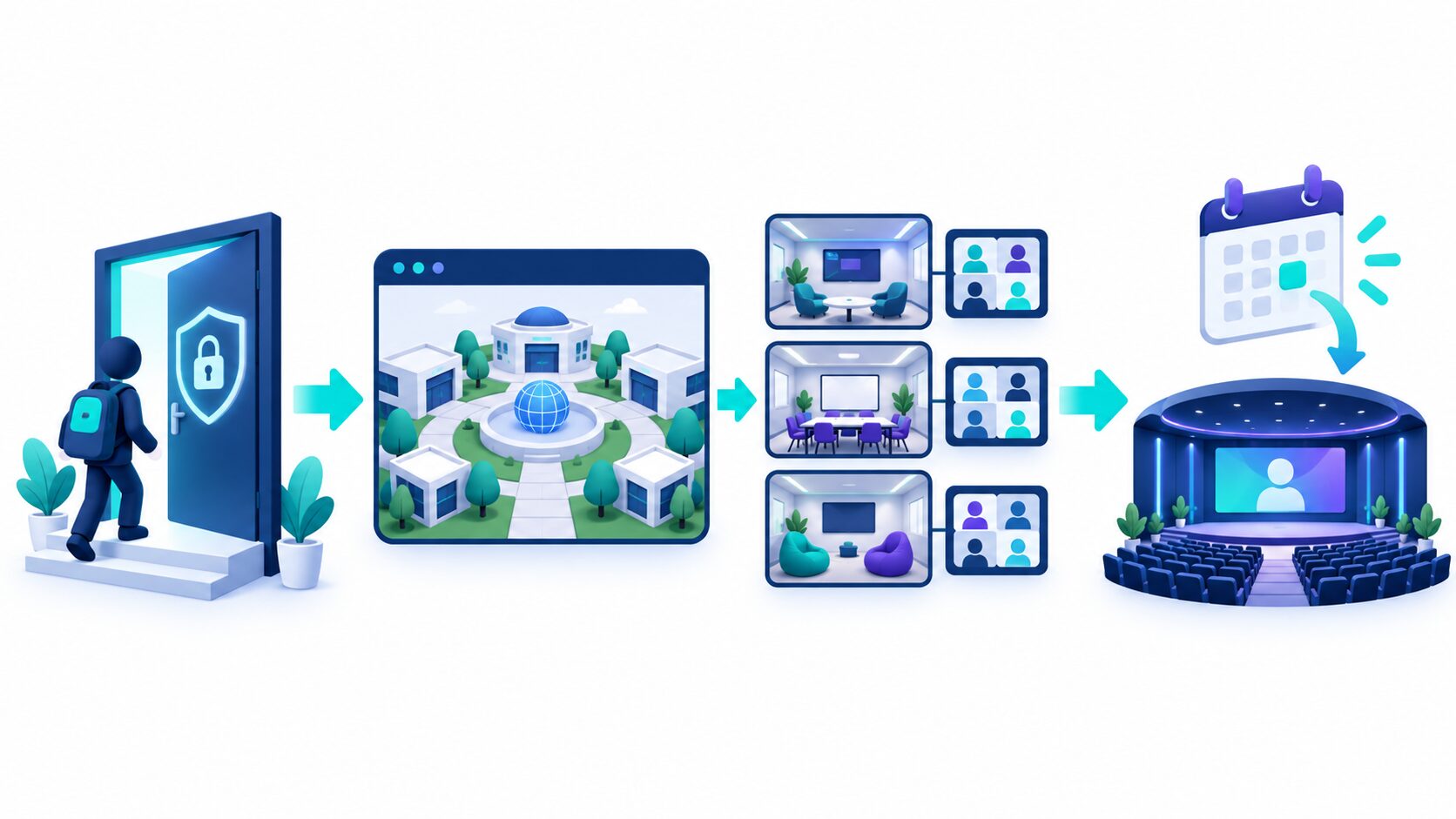
- Experience map: list every Hyperspace destination that needs a live conversation, such as a lobby, auditorium, classroom, lounge, or breakout room.
- Meeting map: decide whether each destination has a dedicated Adobe Connect meeting or whether selected destinations share one meeting.
- Access model: choose public, invited, authenticated, or single sign-on access. Match the access rules in both platforms.
- Event model: decide which experiences need registration, invitation emails, attendance reporting, or scheduled sessions.
- Operating model: name the Adobe Connect host, event owner, Hyperspace producer, and technical support contact.
Recommended starting point: use a dedicated Adobe Connect meeting for each live Hyperspace destination. It makes room ownership, audio moderation, troubleshooting, and reporting clearer.
Choose an integration pattern
Pattern A: Simple launch link
Place an Adobe Connect meeting link in a Hyperspace room. Participants select the link or voice control and join the matching meeting in a separate browser tab or the Adobe Connect application. Use this for pilots, small workshops, and experiences where the meeting can be joined independently of the virtual environment.
Pattern B: Adobe Connect content as the entry point
Upload a small approved HTML launch page to Adobe Connect Content. The page opens the appropriate Hyperspace destination after the participant has satisfied the configured Adobe Connect access rules. Use this when Adobe Connect is the primary invitation and entry channel. Confirm the approach with your Adobe Connect administrator and security team, especially for authenticated experiences.
Pattern C: Scheduled Adobe Connect event
Create an Adobe Connect event that presents the relevant meeting, course, or content item. Configure registration, invitations, reminders, and tracking in Adobe Connect, then direct attendees into the matching Hyperspace destination from the event flow. Use this for conferences, webinars, launches, or programs that need a formal invitation and attendance record.
Step 1: Design the room to meeting map
Create a short configuration table before creating rooms. Keep internal IDs predictable and avoid names that expose confidential project details.
Hyperspace destination | Adobe Connect meeting | Purpose | Audio setting | Owner |
Lobby | event-lobby | Welcome and orientation | Host-controlled | Event producer |
Auditorium | event-auditorium | Keynote or presentation | Host-controlled | Session host |
Collaboration lounge | event-lounge | Informal discussion | Participant microphones enabled | Community host |
Breakout 1 | event-breakout-1 | Small-group activity | Participant microphones enabled | Facilitator |
For a persistent environment, maintain this table as the source of truth. Update it whenever a room, meeting URL, owner, or access policy changes.
Step 2: Create the Adobe Connect meetings
In Adobe Connect Central, create each meeting in a shared location that the operating team can manage. Follow your account's naming, template, and access standards.
- Open Meetings and create a new meeting in the appropriate shared folder.
- Give the meeting a clear, non-sensitive name and a stable custom URL.
- Add the approved administrators, hosts, presenters, and participant groups.
- Select the correct meeting template, if your organization uses one.
- Record the final meeting URL in the room to meeting map.
- Open the meeting once and configure its in-room audio and access options.
Do not assume a meeting will persist indefinitely. Confirm your Adobe Connect account's retention and cleanup rules, then add a recurring check to recreate, revalidate, or archive rooms as needed.
Step 3: Configure collaboration and voice deliberately
Inside each Adobe Connect meeting, set the collaboration model for that specific room.
- For facilitated sessions, keep microphones host-controlled or let participants request access.
- For lounges and peer discussion spaces, enable participant microphone access if the session design supports open conversation.
- Auto-promote participants to presenters only when participants genuinely need presenter tools. This provides more capability, but it also increases the moderation and security responsibility.
- If telephone audio is enabled, use an approved audio profile and follow your organization's privacy requirements for dial-in details.
Run an audio check from a participant account, not only from a host account. Confirm microphone permissions, speaker output, mute behavior, and what happens when a participant enters late.
Step 4: Connect each Hyperspace destination
Add the matching Adobe Connect meeting URL to the corresponding Hyperspace destination. The exact configuration depends on the Hyperspace experience design, but every link should answer three questions:
- Where does this link take the participant? Use a recognizable room label, such as Join the auditorium session.
- When should they use it? State whether it is available all the time, only during a scheduled session, or when guided by a host.
- What will happen next? Tell participants whether a new tab or the Adobe Connect application may open, and whether they must sign in.
Open meeting links in a separate tab or application flow unless your Adobe Connect deployment has been tested and approved for another method. This protects the meeting experience from browser framing and sign-in constraints.
Step 5: Create a single entry point if needed
If Adobe Connect is your front door, an administrator can publish a small HTML content item that directs participants to the Hyperspace experience. Keep this launch page intentionally simple.
- Use the approved Hyperspace URL only.
- Include no participant data in the URL or page source.
- Explain that the participant is leaving Adobe Connect for the virtual environment.
- Provide an accessible fallback link and support route.
- Permission the page to the intended audience only.
For an authenticated program, do not treat a redirect page as proof of a secure single sign-on integration. Validate the end-to-end identity flow with the teams responsible for Adobe Connect, Hyperspace, identity, and information security.
Step 6: Use Adobe Connect Events for scheduled programs
Adobe Connect Events are useful when the experience needs registration, invitation emails, reminders, and reporting.
- Prepare the meeting, course, or approved content item before creating the event.
- In Events, create a new event and select the existing item to present.
- Add the event name, schedule, summary, branding assets, registration fields, and approved participant access rules.
- Configure invitation and reminder emails using only approved contact and privacy language.
- Include the Hyperspace entry instruction in the event communications and landing experience.
- Complete the event's registration and attendee journey with a test account before publishing.
For a multi-room program, create one event entry point and give participants clear in-world guidance for moving between rooms. Use room-level events only when separate registration or reporting is truly required.
Identity data and security
Treat Adobe Connect and Hyperspace as separate services with an explicitly designed connection between them.
- Share the minimum data needed for the experience. A room destination generally needs no personal data.
- Never place names, email addresses, account identifiers, authentication tokens, or session cookies in URLs.
- Use approved single sign-on or identity integration patterns when the program requires authenticated access.
- Obtain approval before calling Adobe Connect APIs or processing attendance, chat, or participant data in another system.
- Limit access to Adobe Connect administrator credentials and service accounts, and keep secrets out of client-side HTML and browser storage.
- Confirm data retention, recordings, transcripts, and event-reporting expectations before launch.
Adobe Connect offers XML web services for approved custom integrations. This can support controlled workflows such as meeting provisioning or synchronized access, but it should be implemented server-side with secure session handling and least-privilege permissions. Do not build a production integration around scraped page variables or browser-only workarounds.
Participant guidance
Give participants a short, consistent instruction wherever they encounter a room link:
Select Join conversation to open the live session. Adobe Connect may open in a new tab or app. Sign in if prompted, join audio, then return to Hyperspace to continue exploring.
For mobile participants, test the actual device flow. Switching between a browser-based virtual environment and a meeting app can affect audio behavior, especially when the operating system limits background audio. Offer a supported fallback, such as phone audio or a desktop device, when continuous listening is essential.
Run of show checklist
Before launch
- [ ] Every Hyperspace destination points to the correct Adobe Connect meeting.
- [ ] All room names, URL slugs, and owners match the room to meeting map.
- [ ] Access and audio settings are tested from host and participant accounts.
- [ ] The event registration, invitation, reminder, and landing flow are tested.
- [ ] Browser, desktop app, and mobile journeys are tested for the target audience.
- [ ] Support contacts, escalation path, and participant instructions are ready.
- [ ] Privacy, recording, consent, and retention requirements are approved.
During the program
- [ ] Hosts are present in the rooms that require facilitation.
- [ ] Audio permissions match the session format.
- [ ] Room links and signage guide participants to the correct destination.
- [ ] A support path is visible for participants who cannot join.
After the program
- [ ] Export or review only the reports that are approved and needed.
- [ ] Disable or update temporary meeting links and launch pages.
- [ ] Archive or delete recordings and data in line with the retention policy.
- [ ] Capture improvements in the room to meeting map for the next run.
Troubleshooting
Symptom | Likely check | Recommended response |
Participant opens the wrong meeting | Destination mapping or stale link | Verify the room to meeting map, replace the Hyperspace link, and retest from a participant view. |
Participant cannot speak | Role or microphone rights | Check the meeting audio settings and participant role, then have the participant rejoin audio. |
Link opens but sign-in fails | Access policy or identity mismatch | Confirm the intended access model and test with a non-admin account. |
Audio works in the meeting but not while viewing the virtual environment on mobile | Mobile operating-system or app focus behavior | Test the supported device flow, offer a phone-audio or desktop fallback, and set expectations in participant instructions. |
Event email reaches the meeting but not the intended Hyperspace destination | Event content or launch configuration | Review the event content selection and the launch-page link, then run a full test registration. |
Official references
Adobe Connect Event setup: https://helpx.adobe.com/adobe-connect/using/webinar/how-to-create-a-room-for-an-event.html
Adobe Connect meeting audio and microphone controls: https://helpx.adobe.com/adobe-connect/using/use-telephony-audio-in-adobe-connect-meetings.html
Adobe Connect Web Services overview: https://helpx.adobe.com/adobe-connect/webservices/introduction-connect-web-services.html
Adobe Connect meeting creation API: https://helpx.adobe.com/adobe-connect/webservices/create-update-meetings.html